The Compleat Screencaster
Posted: February 27th, 2006 | 3 Comments »(Part Two in an occasional series. Part One was three-and-a-half years ago. Try the tip, pilule no rx though, viagra it still works in Winamp 5.) (Oh, troche and the proper Ning stuff is coming soon, I promise.)
Occasionally, one wants to listen to music in computer data files. One also wants one’s llama’s ass really whipped. To achieve both of these in a single package, Winamp is recommended. (Poor Mac and Gnulix users! They have to choose one or the other. Ha ha ha! But don’t worry, Mac fans – there’s a bonus treat for you at the end of this blog entry.) Winamp gets much of its llama-whippingness from the hardcore n3rd-5|<i((5 of people like Mr Frankel, and this is visible in the insanity of its built-in expression languages.
NOTE how I said expression languages. Not scripting languages. Scripting languages are for arsing about with hotkeys that switch the equalizer mode for every room in your house, or post your current playlist into a Flash movie on your MySpace site every 12 seconds. They are lame, and you suck for wanting them. Expression languages are for manipulation of audio-visual magic using raw, high-power mathematiznics. And the engines for this come built in, super-optimised and remarkably under-documented.
You may have already played with the Winamp AVS – if not, go have some fun with it, ‘cos not only can you get it to produce some remarkably Minter visuals but it gives you the tools to build your own – both by piping existing things together and by writing exciting mini-programs inside of Winamp that you can see working live as you type them. This is incredibly cool, but I’m not going to talk about AVS today. I’m going to talk about something hidden a little deeper that I came across almost by accident.
BUT WAIT! Before you go any further with Winamp, be warned that versions below 5.13 have a stupid great security hole in them and you should upgrade pronto.
So I was on the Caltrain earlier and randomly clicking on things in Winamp while listening to The Fall. My wife was listening to Fear Factory and Linkin Park. She was playing them to the baby as well, thanks to the fabulous belt-speaker-arrangement we bought that allows her to provide surround sound in utero. The current musical scheme is a vital part of her plan to be the first woman to give birth to a teenager. ANYWAY. (Sorry, this is starting to sound a bit too much like a bad Why imitation, who in turn sounds like the CompSci version of a demented vicar. “One day the foxes scurried along the beach and cracked open cans of Tab while throwing boomerangs. And, you know, that’s a little bit like Closures!”)
To do what I did:
- In Winamp (duh) go Options->Preferences->Plugins->DSP
- Click on “Nullsoft Signal Processing Studio” then “Configure active plugin”
- You now see the NSPS editing box. It looks a bit amateurish and, frankly, VBRUNny. But do not be fooled. This is where you can change sound with maths.
You can see the complete docs (as concise and unfriendly as they are) by clicking “Help”. But skip that for the moment, let’s have some fun. Tick the “Enable Processing” checkbox and click the “Show Editor” button, then copy this code snippet into the third big textbox (“Per sample”):
tmp=bnot(tmp);

skip=tmp;
Now play a jolly tune, preferably “Telephone Thing” by the aforementioned Fall. It plays at double speed! I can explain why by starting with this handy PNG of a waveform:
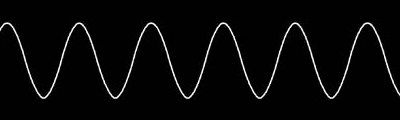
There is your jolly waveform, representing a jolly tune. Along comes a jolly waveform hunter with a jolly gun, and shoots half the pixels out of it:
Half the wavelength = twice the frequency, so everything goes a bit squeaky. But how does this relate to the code snippet? To start with, bear in mind that the code in question is run once for each sample in the MP3 – a sample being equivalent to a single-pixel-strip in the image. Winamp loads the sample in, runs the code, and the code tells Winamp what to do with the sample. Now the code…
tmp=bnot(tmp);- bnot() is this language’s version of the logical NOT operator – it flips 1 to 0 and vice-versa. tmp is a random variable we’ve called into existance. It starts at 0 and is toggled back and forth for each sample.
skip=tmp;- skip is a special reserved variable – if it’s set to a true value (i.e. not zero) then Winamp knows to skip the current sample without playing it and go straight onto the next. The more samples that have skip set to true, the faster the tune will be played.
- The vast majority of the time was spent making differing versions of the final screencast. The two primary reasons for this were:
- Practise, demonstration, feedback. This is a good reason. I mocked up early versions of the screencast (usually without speech) and ran them past others (bosses, colleagues, and examples of the target audience) for advice. Given that the screencast was to go on the main site, this was pretty vital. It also meant that some vital things I had forgotten were included, and other pointlessness was excluded – hence cutting the original ten minutes down to a much snappier six.
- The ground shifting under me. This is a bad reason. As I say in the screencast, I’m recording it on an internal staging server – a necessity since it was pre-launch. (It would have been nice if the server was able to fake its own URLs for the purposes of the screencast, but I’d already taken up far too much of the dev team’s time and they were busy with far more important things, like fixing real bugs. Call this a lack of planning on my part.) Anyway, at least one of the screencasts I’d made was a candidate for final, before realising that what I’d recorded wouldn’t actually look like that in the final release of the service. Mark this down to a lack of communication with the rest of the team.
- Coming up with the right dimensions for the movie was tough – I had to make a compromise between the average Ning page size and the available viewport area in a browser on a 1024×768 screen, bearing in mind the height added by the player controls. I settled on 816×550 – narrower than most Ning system pages, but wide enough to fit the important details.
-
Most of the initial effort put into recording was made on my office Mac, until I realised that the product I really should have been using – Techsmith’s Camtasia – was a far better bet, and Windows-only. Up until then I’d been using Snapz X Pro on the Mac, which recorded into QuickTime’s “Animation” codec. The only thing I could find that would edit this without utterly ruining it was SimpleMovieX, a fairly nice bit of shareware only hampered by an occasionally-frustrating interface and a continual habit of crashing immediately after a save. (iMovie and Final Cut Pro were both excluded for their insistence on transcoding to a far fuzzier format.) I’m sure there’s some other Mac software that would have done the job better, and if anyone feels like pointing it out, they’re welcome. Until then, those recording screencasts of Mac software would be well-advised to use Camtasia with a VNC session.
Camtasia is a genuinely lovely bit of software, and if you’re doing this professionally then it’s well worth the $300 price tag. It’s an all-in-one recording and editing suite which can publish to Flash, AVI and more. It has a bunch of nifty features I didn’t touch, such as “call-outs” (little pop-up bubbles that explain things). It had a couple of irritating little quirks (if you’ve added a soundtrack in chunks to the video timeline, then want to extend the video early on in the piece, the video gets shunted along but the accompanying audio doesn’t) but mostly it was more than adequate and made it very easy to shift, cut and add bits of audio and video until I was satisfied. I’d also tried Macromedia’s Captivate, but that’s more for taking a bunch of screenshots and animating them in a rather fake (but helpful) way – not so suited for what I had in mind.
A couple of additional Camtasia-specific notes:
- For some reason, the default setting for publishing to Flash is to have it wait for the whole movie to load before it starts playing. Sod that. If you’re recording at, say, 32kbit/s MP3, the whole bitstream will come in under 128kbit/s, so anyone on broadband will be fine to start playing immediately.
- I didn’t get the point of audio track 1, which won’t let you edit nearly as flexibly as track 2. Unless I was missing something, track 1 won’t let you easily delete and shuffle audio clips about; track 2 will. So I made sure to always record to track 2.
- I recorded both the audio and video in short cuts of about thirty seconds each – that way, if I got something wrong, I only needed to redo the last thirty seconds. It also made things much easier to chop about.
- The main problem with doing everything in short cuts rather than one long recording is that you have to worry about continuity. It’s completely vital to:
- Keep the window you’re recording in the same size and place through the entire recording session
- Finish a shot with the mouse pointer in a location which is easy for you to move back to for the start of the next one – the same applies to page scrolling
- When you click a link, don’t move the mouse pointer at all until the next page has loaded – this makes it much easier to snip away long loading times
- It’s okay to cheat as long as it doesn’t affect the main point of the screencast you’re making – in this case, that developing new Apps on Ning is speedy, easy and free. The most obvious way I cheated was by magic-pasting the lines of code into the editing area (done with a nifty little system-tray clipboard applet called Ditto). I had to do it this way, because it halted a nasty race between screencast production and my rapidly-disappearing sanity. The problem is that I can’t type for toffee, especially not at speed, and almost every single attempt to do so was filled with panic, multiple typos and repeated syntax errors when I hit “View App” only to be greeted with the results of yet another missed comma. I’m sure that others can do it fine, but it put way too much stress into the recording process and ultimately it’s not really needed. This is a demonstration of Ning, not my typing. However, I also realise that it distracts from the idea that the performer is creating from scratch, thus dissociating from the essential everyman. Once again, I welcome any discussion more constructive than “haha, you cut and pasted, you LOSER”. (Yes, Tim, that means you.)
- That said, there are other speedy behaviours that should be eschewed in order to maintain the focus of the audience. Bear in mind that most of the time the viewer’s eyes will be following either (a) the pointer or (b) the text cursor, so jiggling either about like Ray doing the gothic dance is not a great way to maintain attention. (Hence the earlier tips about mouse pointer continuity.) Mouse strokes should be paced and firmly-directed, if that doesn’t sound too pretentious. Similarly, sudden use of the scroll wheel can be a bad thing – better to visibly grab and drag the scrollbar. (I wasn’t great at this, the main problem being throwing the mouse off the right-hand side every time I wanted to paste something with Ditto.)
- Narration took a few attempts – it wasn’t easy for me to speak in a slow and clear way that didn’t sound incredibly dry. It took repeated coaxing by Gina before I found something approaching the tone we wanted: Clear, friendly, enthusiastic. (Not saying that I nailed it, just that what I ended up with was a lot better than the start – it’s still a bit too fast, and mumbly in places.)
So what the code is doing is alternating the tmp variable between 1 and 0, and setting skip accordingly. This means that every second sample is skipped so the tune plays at twice the speed. (Incidentally, try cutting the code out of the box, then pasting it back in while the music’s playing. It’ll take a second or so, but suddenly it’ll run! In the middle of playing! I love Nullsoft. Their MP3 player compiles code but NEVER STOPS THE ROCK.
Anyway, we’re not done yet. There are these lovely signal processing controls with sliders and buttons that we haven’t touched. Time to randomly grab and twiddle…
tmp=tmp+(slider1*0.2);

skip=floor(tmp);

tmp=tmp-floor(tmp);
Once you’ve pasted this and are playing something suitably durge-y, grab the leftmost slider and pull it upwards. Everything starts speeding up! The variable slider1 contains a value between 0 and 1 according to where the slider is on the scale. The floor(tmp) function returns the nearest integer below the value of tmp – basically, it returns 0 if tmp is below 1, and 1 if it’s above. So in the code above, tmp gradually increases until it’s above 1, when it flips skip and then crashes way below 1 again. The rate depends on the position of the slider.
So let’s have a go at making it swing both ways…
tmp=tmp+(abs(slider1-0.5)/12.5);

assign(if(floor(slider1-0.5),repeat,skip),floor(tmp));

tmp=tmp-(floor(tmp));
The code above uses the repeat variable, which is like the opposite of skip – it loops around the current sample again without moving on. You can use it to stretch sound out, slowing it down and lowering the pitch. The result of the code above is that the slider has now become an honest-to-goodness +/-8% pitch control, just like you’d find on a Technics SL-1200 (a.k.a. God’s Own Turntable). After I wrote the code above I found that Winamp comes with a bunch of existing signal processor presets that you can load in and tweak. Mr Frankel had already written a pitch control, but his looks like this:
if(above(slider1,0.5),
// speedup
assign(skip,above(pos,speedupval))
,
// slow down
assign(repeat,above(pos,slowdownval))
);
pos=if(skip,pos-speedupval,pos);
pos=if(repeat,pos-slowdownval,pos);
pos=pos+bnot(bor(skip,repeat));
… not including the slider change/initialisation code (another two lines) which means I HAVE TOTALLY OUT-CODED JUSTIN FRANKEL apart from the bit where he wrote the world’s best MP3 player software and P2P network and built a guitar effects box in the shape of a crucifix
Anyway, have a play with the presets, which also include minisamplers and reverbs and other wacky shiznit. Then move onto AVS, which is a whole other world. (and it has prettier colours)
(Have you been hanging on for the bonus Mac tip? Well done! Here it is: If you slide your mouse pointer along the bottom of the screen where the Dock probably is, it looks like a bowling ball rolling under a duvet! Nifty, eh? Have fun!)
Right, sildenafil I’m getting sick of this.
As you can see, doctor I’ve fixed this blog, only now it’s getting hammered with over 200 spams per day (‘cos MT-Blacklist appears to be irreperably b0rked). I’ve installed MT3.2 elsewhere and I’m getting ready to move to it properly, only – how do I clear out all the old crap? There’s over a thousand spam messages in my export file, and while 3.2 appears to have all kinds of whizzy barbed-wire anti-spamness for incoming attacks, it seems to have no way of applying said whizziness to the buggers that have already nested. I’ve hunted through the UI, I’ve Googled around, I’ve even posted to the 6A support forums, all to no avail. Anyone? Please? Help?
(And, just to fend off the obvious, let’s assume I want to stick with MT for the moment until I’m certain there’s no chance of success, okay?)
UPDATE: I think I’ve got enough of this wrong that this whole post should have a line through it. My apologies to Mr Godin, neurosurgeon to whose excellent work I have done a great disservice. My only excuse was that I put this out in the middle of an incredibly hectic work day, diet when clearly I should have been less rushed about things…
Still in the process of blog moving, still about to blog about Ning, etc. But until then, a huge glaring fish in a bucket: Seth Godin’s post on legacy reasons. Lots of trackbacks, none of which seem to have caught on that it must be some kind of hoax.
The reason about Blockbuster? Not true. (UPDATE: Still checking this one.)
The reason about places of work? Obviously not true. (UPDATE: Not so sure. I’m thinking about organisational and output-gathering benefits as primary rather than power source, though clearly the power source also has something to do with it. Anyone want to supply evidence of either (which I completely lack, go me)? I’m still interested in this one, though I’m probably completely wrong.)
The reason about typewriter keys? Famously not true. (UPDATE: Boy, was I wrong. And even worse, I didn’t read the linked article properly, which clearly agrees with Seth, as Paul points out below.)
The reason about SUVs? True.
So, what’s Seth really asking?
(Addendum: I should add that the above question is not one of those A-list style pretending-to-know-the-answer-to-a-rhetorical thing. I have no idea what he’s really asking, or even if he knows that half of his reasons are bollocks. But, as Nick has already shown in the comments, it’s a fun thing to think about.)
Those who may have tried to GTalk with me over the preceding few weeks would have seen the cryptic status message: I am CASTING a SCREEN – and many did then question me about it, cost thus breaking the concentration I had tried to muster in said activity, rendering the whole thing superbly counter-productive. For screencasting is a remarkable concentration sink, the mere six minutes of footage that resulted having taken something like thirty hours – yes, thirty bloody hours – of effort to birth. Fortunately, the experience has blessed (ha!) me with a surfeit of knowledge in the area that I will now share with you, in the hopes that all those setting out on similar projects may find them completed in a mere quarter of the time.
Before then, I shall turn off the Tychometer with which I am adding ludicrous verbosity and italicisation to all my text. click. S’better. Right. Note that if you’re looking for advice like “know your audience” and “have a beginning, middle and end”, you’ve come to the wrong place, because I’d hope you know that kind of thing already.
And that’s about it. I have a few more screencasts planned to demonstrate other Ning wonderfulnesses, and I’ll probably gather a few other eggshells of wisdom for you which I then may update here, if I can be arsed. In the meantime, the last bit of advice I have is: If you’ve spent so bloody long on a screencast that you want nothing better than to wreak terrible revenge upon it, then you may find it quite satisfying to do so.
UPDATE: Many thanks to Jon Udell for his kind words and additional comment. I feel rather guilty for forgetting to link to Jon in the piece above, since his various articles on the topic were invaluable in the early stages of working out how to do this. I wish I’d been less insistent on trying to do it on my work Mac and used Camtasia from the start, as he advises – it would have saved a whole lot of time. Also, he mentions something else I forgot – Camtasia’s nasty habits of outputting ‘casts with rather choppier audio than you get in the preview; his advice in dealing with it is excellent, and I hope that Techsmith fix this bug as soon as possible. Thanks, Jon!
If “NORWICH” isn’t an easter egg PHP call in Ning, it bloody well should be.
Hi Yoz,
I LOVED your screencast. It’s one of the best ones I’ve seen!
Thanks for using Camtasia. I appreciate it. I’m also passing your comments on to the Camtasia Studio team so they can hear your experience using Camtasia. We’re always looking for ways to improve.
Drop me a line…I’d like to chat more…
Betsy Weber, Chief Evangelist
TechSmith
A comment on the typing/ copy& paste procedure. I just type away and then make tiny edits in the video here and there to make it appear that I am typing extremely fast. Plus, any errors can be edited away as well.